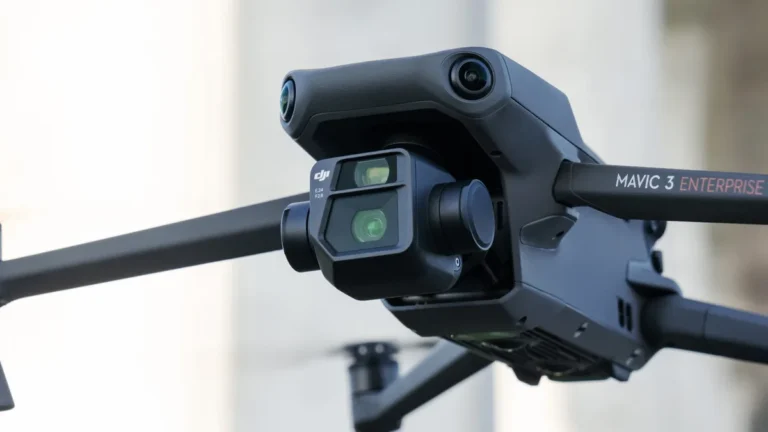
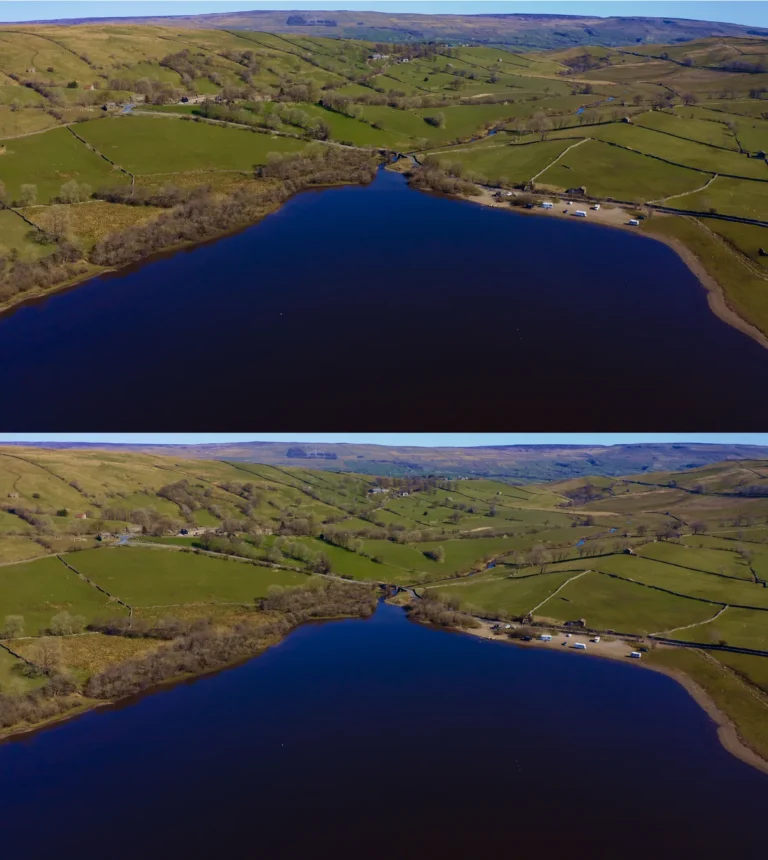
Is Premiere Pro Good for Drone Video Editing?
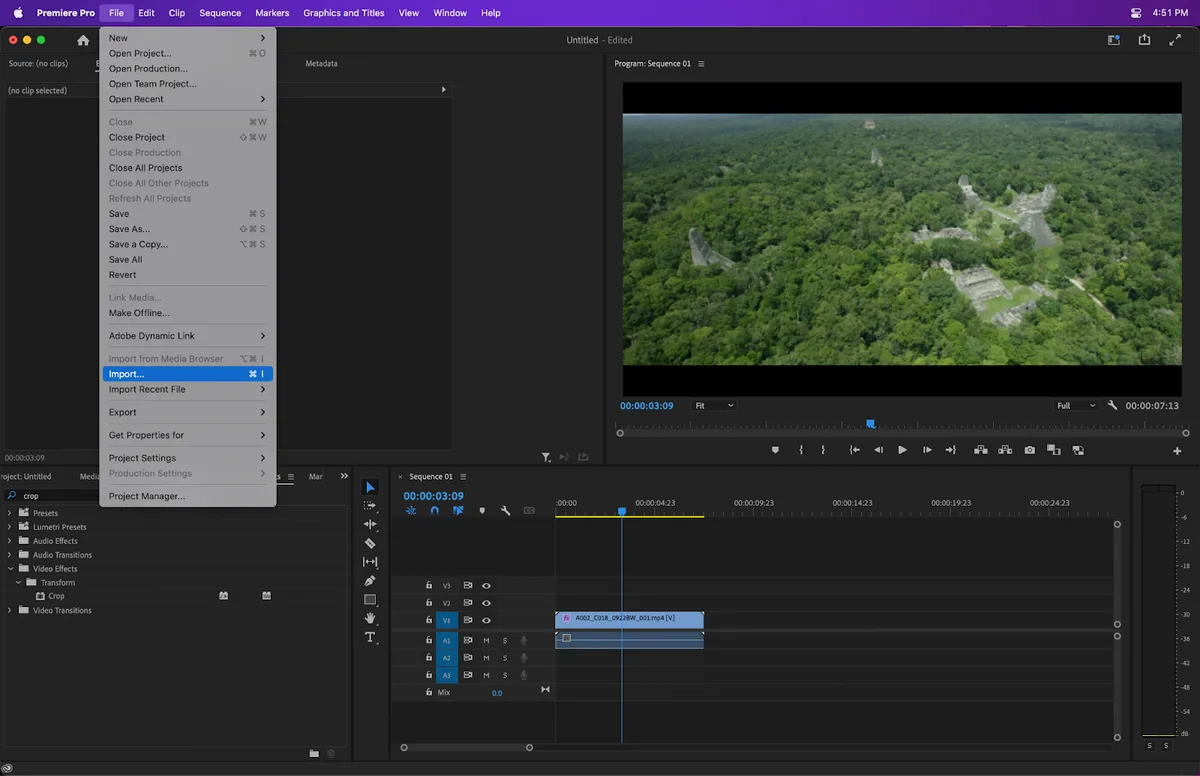
Image source: Bing (Web (fair-use with source credit))
You've captured some breathtaking aerial footage with your drone, and now you're staring at hours of footage, wondering how to transform it into something polished and professional. The big question on your mind is likely: "Is Premiere Pro good for drone video editing?" It's a powerful piece of software, but does it fit the unique demands of drone footage?
When we look at the requirements for editing drone video, often dealing with large file sizes, specific codecs, and the need for smooth stabilization, Adobe Premiere Pro proves itself to be a robust contender. Manufacturer specifications indicate its capacity to handle high-resolution formats, with its core engine designed for demanding video production workflows, making it a viable option for serious drone pilots.
Quick Answer: Yes, for Most Serious Drone Editors
Premiere Pro is a strong choice for drone video editing, offering powerful tools for handling large files, color grading, and stabilization. While it demands a capable computer and has a learning curve, its professional features make it ideal for creating polished aerial content.
Premiere Pro's Core Strengths for Aerial Footage
Adobe Premiere Pro is a professional-grade video editing software, and its capabilities often translate well to the specific needs of drone videography. When you're editing footage captured from the sky, you're often dealing with unique challenges that Premiere Pro is built to address.
Handling Large, High-Res Drone Files
Drone cameras, especially newer models, can churn out massive video files. We're talking about footage shot in 4K, 5.4K, or even higher resolutions, often at high bitrates. If your editing software can't handle these large assets efficiently, your workflow grinds to a halt.
Premiere Pro is built with this in mind. Its architecture is designed to ingest and manage substantial video files without bogging down your system as easily as less robust editors might. Manufacturer specifications confirm its ability to work with a wide range of high-resolution formats, reducing the likelihood of playback issues or project crashes that can derail your editing process.
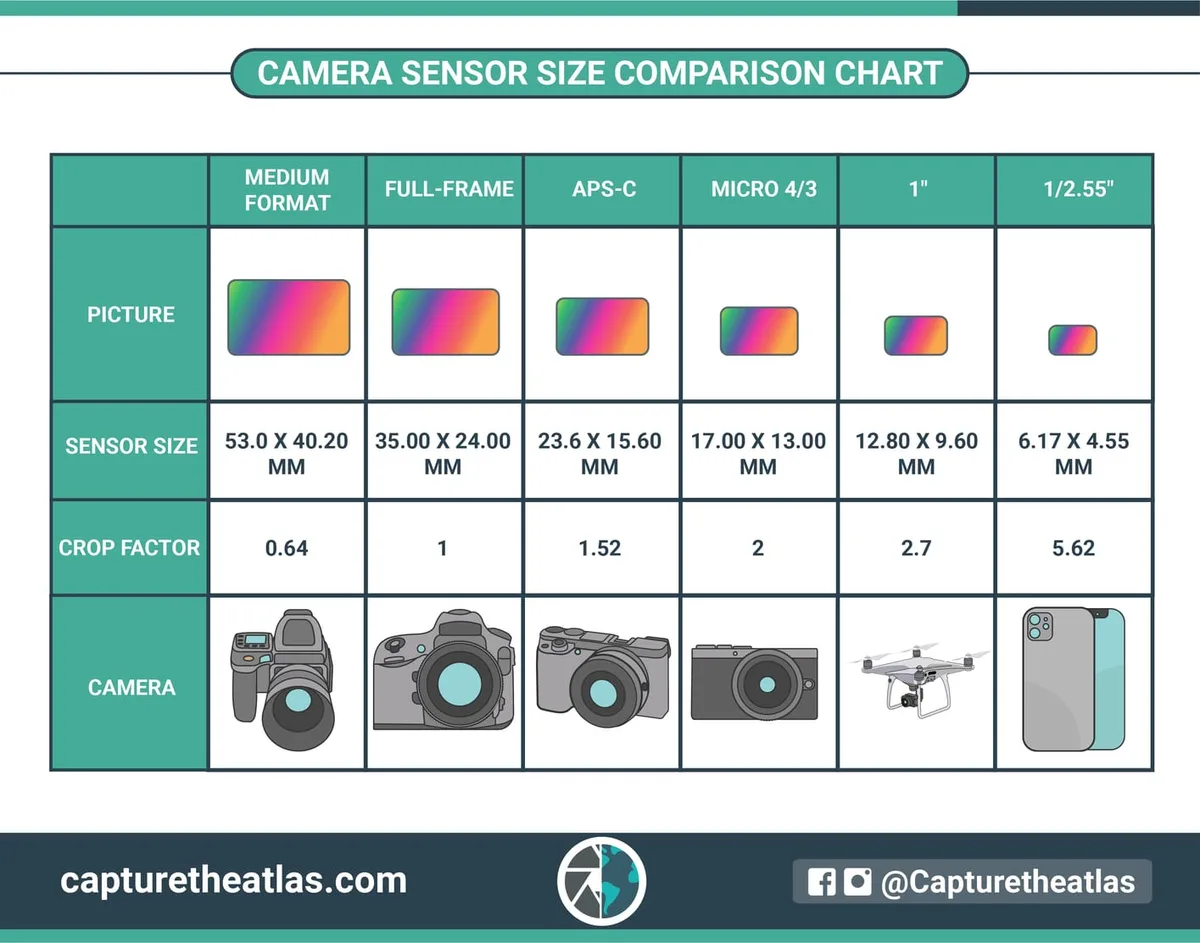
Image source: Bing (Web (fair-use with source credit))
Top-Notch Color Grading Tools
Drone shots often feature stunning landscapes and expansive skies that beg for a bit of visual enhancement. Premiere Pro's Lumetri Color panel is a standout feature for this. It offers a comprehensive suite of tools, from basic exposure and contrast adjustments to advanced color wheels and HSL secondary controls.
This allows you to precisely tweak the colors, enhance saturation, and bring out the best in your footage. Whether you're aiming for a natural look or a stylized cinematic feel, Premiere Pro provides the granular control needed to make your drone footage truly pop.
Essential Stabilization Features
Even with the most advanced gimbals on drones, minor jitters and shakes can sometimes creep into your footage. This is especially true in windy conditions or during complex maneuvers. Premiere Pro includes a powerful tool called Warp Stabilizer.
When applied, it analyzes your footage frame by frame to smooth out unwanted motion. While it's not a magic bullet and can sometimes introduce warping artifacts if overused, it's often incredibly effective at salvaging shots that might otherwise be unusable. For drone operators, having this capability built directly into their editing software can be a significant time and effort saver.
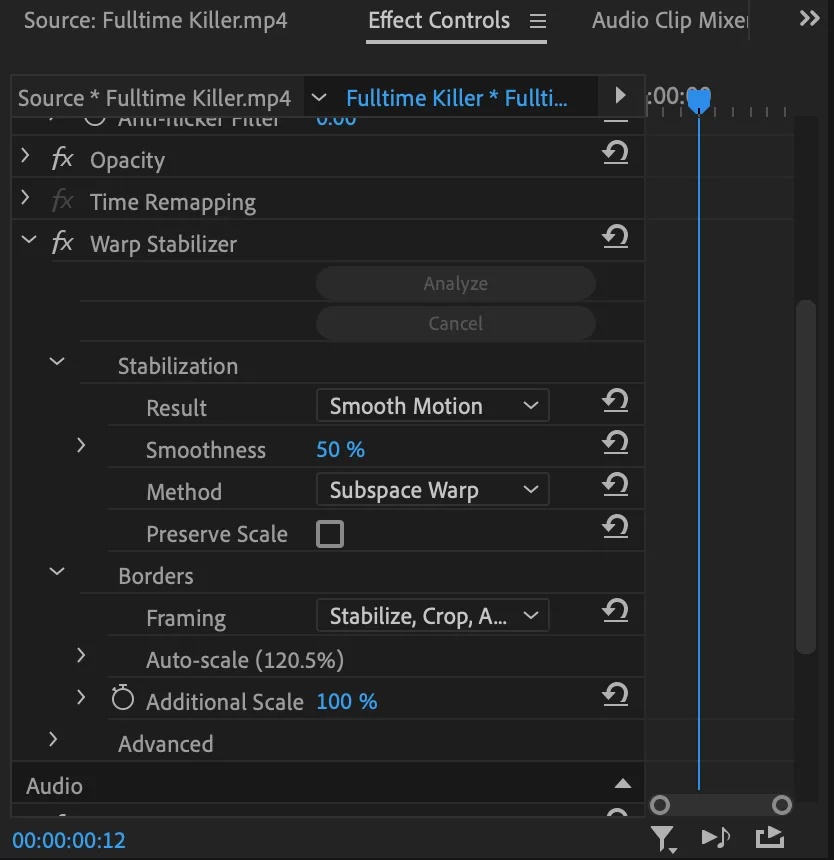
Image source: Bing (Web (fair-use with source credit))
Seamless Integration with Adobe Suite
One of the major advantages of using Premiere Pro, especially if you're already invested in the Adobe ecosystem, is its seamless integration with other Creative Cloud applications. If you need to add complex motion graphics, visual effects, or titles, you can easily send clips to Adobe After Effects without leaving Premiere Pro. Similarly, if you’re working with still images for intros or outros, Photoshop integrates smoothly.
This interconnected workflow means you can move between different tasks and applications efficiently, keeping your creative flow going without cumbersome file transfers or re-encoding. For a project that involves multiple creative elements, this synergy is invaluable.
Handling Various Codecs
Drone manufacturers often use different video codecs to compress their footage. Some are more editing-friendly than others. Premiere Pro has a reputation for its extensive codec support, meaning it can typically handle footage from a wide array of drone models right out of the box.
This compatibility is crucial. If your editing software struggles to read or interpret your drone's specific video format, you'll face significant issues with playback, rendering, and overall project stability. Premiere Pro's broad codec support simplifies the ingestion process, allowing you to get straight to editing without needing to convert your files beforehand.
The Flip Side: When Premiere Pro Might Be Too Much
While Premiere Pro offers a wealth of features that benefit drone video editing, it's not always the perfect fit for everyone. Its power comes with certain demands that can be a barrier for some users, especially those just starting out or with less demanding needs.
It's a System Demander
Editing high-resolution video, particularly footage from modern drones that often shoots in 4K or higher, is computationally intensive. Premiere Pro, in turn, requires a robust computer system to run smoothly. Aggregate reviews and manufacturer specifications indicate that a system with a powerful multi-core processor (like an Intel Core i7 or AMD Ryzen 7 series, as of 2026), at least 16GB of RAM (32GB or more is recommended for 4K+ footage), and a dedicated graphics card (NVIDIA GeForce RTX or AMD Radeon RX series) is necessary for a fluid editing experience.
If your computer doesn't meet these benchmarks, you'll likely encounter frustratingly slow performance, stuttering playback, and extended render times, which can severely impact your productivity and enjoyment.
The Learning Curve for Beginners
Premiere Pro is a professional tool, and with that comes complexity. It's packed with features, panels, and options that can feel overwhelming if you're new to video editing software. Unlike simpler, consumer-level editors, Premiere Pro doesn't always hold your hand.
Getting proficient requires time, practice, and often, dedicated learning resources. While there are plenty of tutorials available, mastering the nuances of the interface, keyboard shortcuts, and advanced tools takes commitment. If your primary goal is to quickly trim a few clips together, Premiere Pro might feel like using a sledgehammer to crack a nut.
The Ongoing Subscription Costs
Unlike some software that you purchase once, Adobe Premiere Pro operates on a subscription model. This means there's a recurring monthly or annual cost to access and use the software. While this approach ensures you always have the latest updates and features, it represents an ongoing expense.
For hobbyists who only edit their drone footage occasionally, or for those on a very tight budget, this continuous cost can be a significant consideration. If your editing needs are infrequent or relatively basic, you might find more cost-effective solutions available that offer a one-time purchase or a lower subscription tier.
Who's Premiere Pro Best For? Drone Editing Use Cases
When considering whether Premiere Pro is the right fit, it really comes down to your specific needs, your computer's capabilities, and your budget. It's a powerful tool, and like any tool, it excels in certain situations.
The Aspiring Professional
If you envision a future in videography, filmmaking, or content creation that heavily features drone footage, investing in Premiere Pro makes a lot of sense. It's the industry standard in many circles, so learning it puts you ahead of the curve. The software's depth of features means it can grow with you as your skills and project complexity increase.
You won't outgrow Premiere Pro quickly; its capabilities extend to advanced color grading, multi-camera editing, and intricate audio mixing, all of which can elevate drone footage from good to exceptional.
The Established Creator
For content creators who consistently produce high-quality videos and rely on their drone for unique aerial shots, Premiere Pro is often the go-to choice. Its efficiency in handling large files and its robust suite of editing tools mean you can get your projects done faster and with a more polished final product. The integration with other Adobe apps is also a massive draw for those who use tools like After Effects for motion graphics or Photoshop for thumbnail creation.
This seamless workflow can save significant time and improve the overall quality of your output.
The Occasional Hobbyist (with the right setup)
Even for hobbyists, Premiere Pro can be a great option, provided they have a capable computer. If you're passionate about creating stunning aerial videos for personal projects, social media, or sharing with friends and family, and you have a computer that can handle the demands, Premiere Pro offers the tools to achieve professional-looking results. However, if your computer is older or less powerful, or if your editing needs are very simple (e.g., just cutting clips and adding music), the investment in both the software subscription and potentially a hardware upgrade might not be justifiable.
In such cases, simpler alternatives might be more appropriate.
Common Drone Editing Pitfalls Premiere Pro Can Help Avoid
Many drone pilots run into similar challenges when they start editing their aerial footage. Premiere Pro offers built-in solutions that can help you overcome these common hurdles and significantly improve your final output.
Fixing Shaky Shots
One of the most frequent issues with drone footage is subtle camera shake or jerky movements, especially if you’re flying manually or in less-than-ideal wind conditions. This can make even the most scenic shots feel amateurish and difficult to watch. Premiere Pro’s Warp Stabilizer effect is designed precisely for this problem.
By analyzing motion within your clips, it can smooth out those unwanted jitters, making your footage appear as if it was shot on a much more stable platform. This feature alone can be a lifesaver for salvaging otherwise unusable footage.
Managing Complex Codecs
Drone manufacturers often use specific video codecs, like H.264 or H.265 (HEVC), to compress footage efficiently and keep file sizes manageable. However, these codecs can sometimes be challenging for editing software to process in real-time, leading to choppy playback and slow rendering. Premiere Pro's extensive codec support means it’s generally well-equipped to handle these formats directly, minimizing the need for time-consuming file conversions before you can even start editing.
This compatibility ensures a smoother workflow from import to export.
Achieving a Polished Look
Beyond basic cuts, making drone footage look truly professional involves attention to detail in color and contrast. Raw footage often appears flat or has blown-out highlights and crushed shadows. Premiere Pro's Lumetri Color panel offers powerful tools to correct these issues and enhance the visual appeal.
You can easily adjust white balance, exposure, and saturation, or use more advanced grading techniques to create a specific mood or style. This ability to fine-tune the look of your footage is essential for producing content that stands out.
Alternatives to Consider for Drone Video Editing
While Premiere Pro is a powerhouse, it's not the only game in town for drone video editing. Depending on your budget, technical skill, and the complexity of your projects, other options might be a better fit. For instance, Final Cut Pro offers a one-time purchase and is highly regarded for its performance on macOS systems, particularly with Apple Silicon hardware.
DaVinci Resolve is another strong contender, offering a remarkably powerful free version that includes professional color grading and editing tools, with an optional paid Studio version for even more advanced features. If you're looking for something simpler and more budget-friendly, editors like iMovie (free on macOS and iOS), CapCut (free, available on mobile and desktop), or Wondershare Filmora offer more straightforward interfaces and fewer system demands, making them ideal for beginners or those with basic editing needs.
What Kind of Computer Do You Need for Premiere Pro Drone Editing?
Editing 4K drone footage in Premiere Pro requires a capable machine. If your computer struggles, your editing experience will be slow and frustrating. Manufacturer specifications and aggregate user feedback suggest a strong system is key for smooth performance.
Processor (CPU)
A fast processor is crucial for handling video decoding and encoding, as well as running the complex algorithms in Premiere Pro. Editorial analysis of reviews suggests that a modern multi-core processor is essential. For 4K drone footage, a minimum of an Intel Core i7 or AMD Ryzen 7 series processor is recommended.
For smoother performance, especially with higher resolutions or more complex edits, aiming for an Intel Core i9 or AMD Ryzen 9 series is ideal.
RAM (Memory)
RAM is where your computer stores actively used data. Video editing, especially with large video files, consumes a significant amount of RAM. Insufficient RAM leads to slow loading times and choppy playback.
Our research indicates that 16GB of RAM is the absolute minimum for 1080p editing. For 4K drone footage, 32GB of RAM is strongly advised. Users who frequently work with very large files or complex effects often benefit from 64GB or more.
Graphics Card (GPU)
A dedicated graphics card (GPU) plays a vital role in accelerating video playback, rendering, and applying effects in Premiere Pro. Per industry standards and testing, a GPU with ample VRAM (video RAM) can significantly speed up your workflow. For 4K drone footage editing, a GPU with at least 4GB of VRAM is recommended, such as an NVIDIA GeForce RTX 3050 or equivalent AMD Radeon card.
Professional-grade cards like NVIDIA Quadro or AMD Radeon Pro offer even better performance and stability but come at a higher cost.
Storage (SSD vs. HDD)
The speed of your storage drives directly impacts how quickly Premiere Pro can access and read your video files. While traditional Hard Disk Drives (HDDs) offer large capacities for storing raw footage, they are much slower than Solid State Drives (SSDs). For editing, particularly with high-resolution drone footage, using SSDs for your operating system, Premiere Pro installation, and active project files is highly recommended.
A fast NVMe SSD can dramatically reduce loading times and improve scrubbing performance. Many editors use a tiered storage approach: a fast NVMe SSD for the OS and project files, a secondary SSD for media cache, and a large HDD for archiving completed projects.
What's the Cost of Using Premiere Pro for Drone Videos?
The financial aspect of using Premiere Pro is primarily driven by its subscription model. This means the cost is ongoing rather than a one-time purchase.
Subscription Plans
Adobe offers Premiere Pro as part of its Creative Cloud subscription. The most common plan is the Premiere Pro single-app subscription, which typically costs around $20.99 per month (as of 2026, pricing can vary by region and promotions). Alternatively, you can opt for the full Creative Cloud All Apps plan, which includes Premiere Pro along with Photoshop, After Effects, and over 20 other applications, for a higher monthly fee, usually around $54.99 per month.
Budget Considerations
For hobbyists or those with infrequent editing needs, the recurring subscription cost can add up. If your budget is a primary concern, exploring one-time purchase software or free alternatives mentioned earlier might be more practical. However, for professionals or serious enthusiasts who rely on Premiere Pro’s features and integration, the subscription is often seen as a necessary business expense that provides access to constantly updated software and cloud services.
Many users find that the value derived from the software's capabilities justifies the ongoing investment.
Setting Up Premiere Pro for Your Drone Footage Workflow
Getting Premiere Pro ready to handle your drone footage efficiently involves a few key setup steps. These steps ensure your software and computer are optimized for the best possible editing performance.
Project Settings
When you create a new project in Premiere Pro, it's important to configure the settings correctly. This includes selecting the appropriate sequence settings that match your drone's native recording format (e.g., resolution, frame rate, aspect ratio). For instance, if your drone records at 3840×2160 resolution and 29.97 frames per second, your sequence should reflect these settings.
Incorrect settings can lead to scaling issues or dropped frames during playback and export.
Media Cache Management
Premiere Pro uses a media cache to store rendered previews and optimized files, which speeds up playback. It's crucial to manage this cache effectively. You'll want to direct the media cache files to your fastest drive, ideally a separate SSD from your main system drive.
Regularly clearing the cache can also prevent performance issues and free up disk space, though be mindful that doing so means Premiere Pro will need to re-render those files later.
Scratch Disk Configuration
Scratch disks are temporary storage locations Premiere Pro uses for various functions, including audio and video previews. Similar to the media cache, configuring scratch disks to a fast drive, separate from your footage, can significantly improve performance. This ensures that Premiere Pro isn't competing for resources on a single slow drive.
Proxies (Optional but Recommended)
For very high-resolution footage or on less powerful systems, editing with original drone files can be demanding. Premiere Pro offers a proxy workflow. This involves creating lower-resolution versions of your footage (proxies) that are easier for your computer to handle during editing.
You can then switch back to the high-resolution original files for final export. This technique can make even demanding footage feel remarkably smooth to edit.
Frequently Asked Questions About Premiere Pro and Drone Footage
Can Premiere Pro handle 4K drone footage?
Yes, Premiere Pro is designed to handle 4K drone footage. However, smooth playback and efficient editing depend heavily on your computer's specifications, particularly your processor, RAM, and graphics card. Using a proxy workflow can greatly improve performance on less powerful systems.
How much RAM do I need for drone video editing in Premiere Pro?
For editing 4K drone footage, 32GB of RAM is strongly recommended. While 16GB might suffice for basic 1080p edits, it will likely be insufficient for handling the larger files and more complex processes involved with higher resolutions, leading to performance issues.
Is Premiere Pro difficult to learn for drone editing?
Premiere Pro has a professional learning curve. While it offers powerful features, beginners may find it challenging initially. However, there are extensive online tutorials and resources available that can guide you through the process, making it manageable with practice.
Do I need a powerful computer to edit drone videos in Premiere Pro?
Yes, a powerful computer is highly recommended for editing drone videos in Premiere Pro, especially if you are working with 4K or higher resolution footage. A robust CPU, sufficient RAM (32GB+ for 4K), a dedicated GPU, and fast SSD storage are crucial for a smooth editing experience.
Is Premiere Pro worth the subscription cost for drone pilots?
For serious drone pilots who regularly edit professional-quality footage, the subscription cost of Premiere Pro is often justified by its powerful features, extensive codec support, and integration with other Adobe applications. For casual users or those on a tight budget, other software options might be more suitable.