What Computer Is Best for Editing Drone Footage?
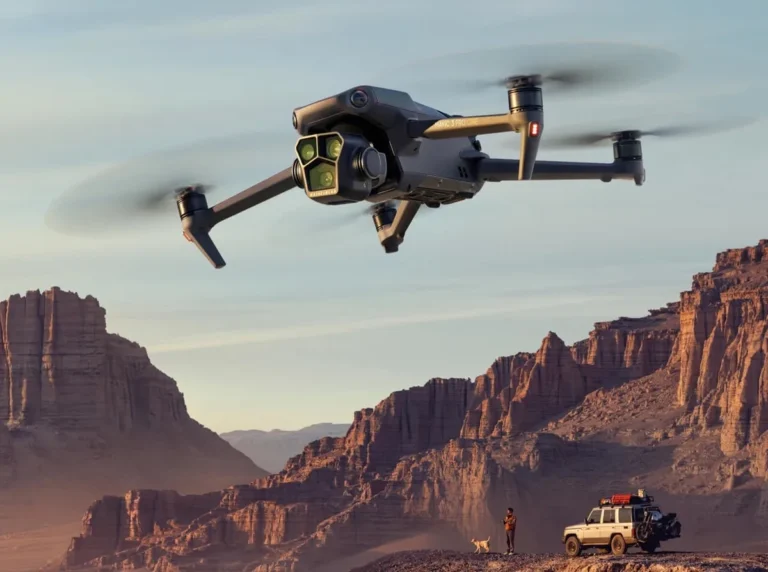
What computer is best for editing drone footage? For many of us who capture aerial video, the moment we hit 'record' on our drones is just the beginning. The real challenge often starts when we transfer those massive files back to our computers, only to find our editing software chugging along slower than a snail.
Our research shows that choosing the right computer hardware makes a huge difference in your workflow's efficiency and your overall sanity. For instance, manufacturer specifications for high-end video editing software often recommend processors with at least 8 cores and clock speeds exceeding 3.5 GHz for optimal performance with 4K footage. This is where we’ll dive into what really matters.
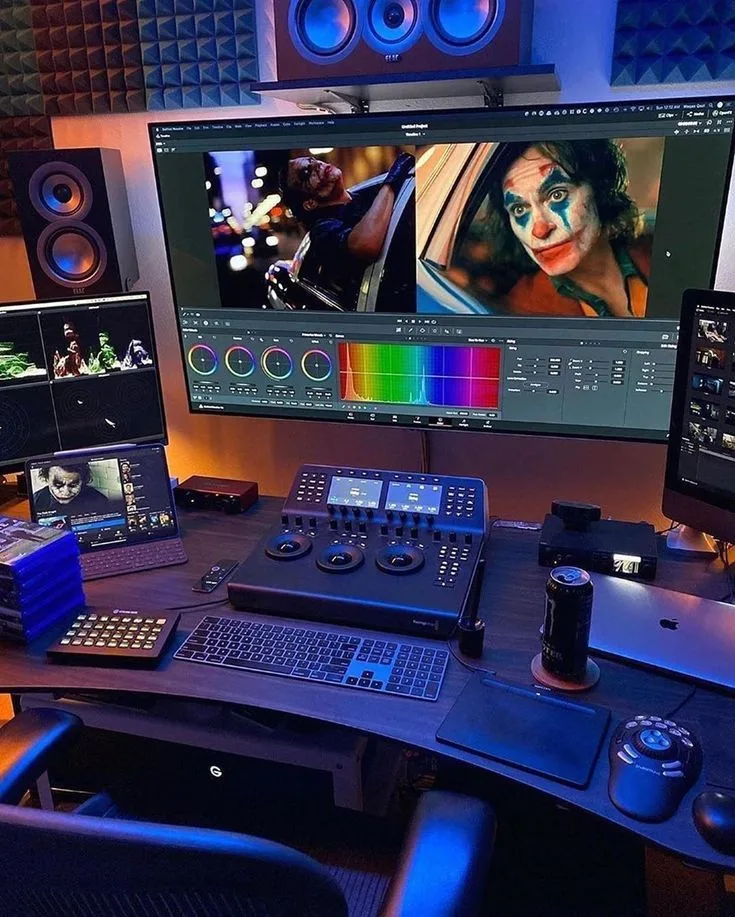
Image source: Bing (Web (fair-use with source credit))
Why Your Editing Computer Needs to Be Beefy for Drone Footage
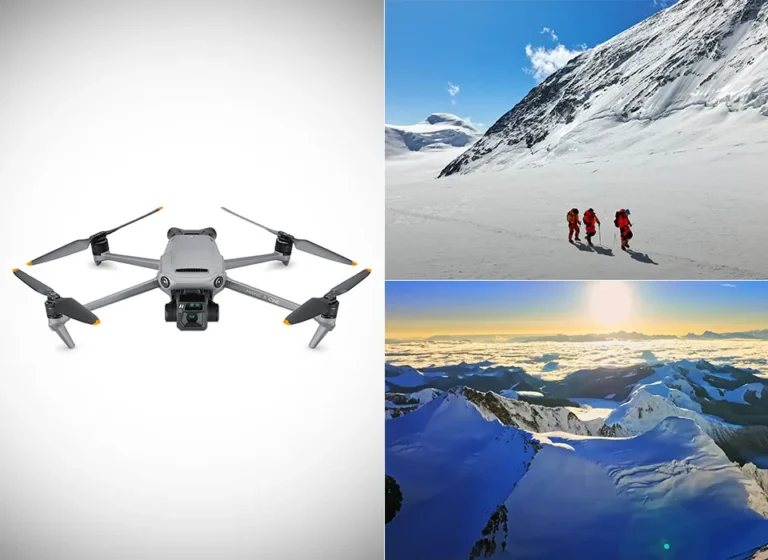
Drone footage, especially when shot in high resolutions like 4K, 5K, or even 6K, is incredibly data-intensive. Think of each frame as a high-resolution photograph; now imagine hundreds of those per second, all needing to be processed smoothly by your editing software. This isn't like editing home movies from your old camcorder.
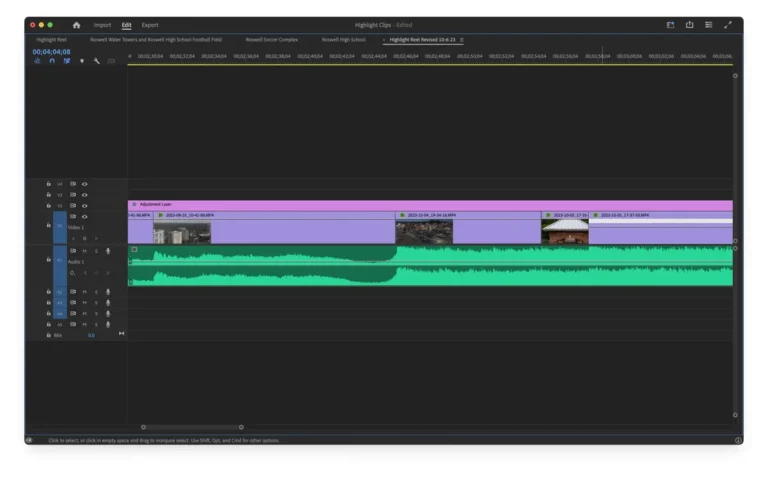
The demands come from several angles: the sheer volume of data, the complexity of modern video codecs (like H.265, which is very efficient but computationally demanding), and the expectations you have for real-time playback and quick rendering. If your computer struggles, you’ll experience frustrating lag when scrubbing through footage, slow preview renders, and painstakingly long export times. This can seriously hinder your creative flow and impact your ability to deliver projects on time.
Quick Answer
The best computer for editing drone footage is one with a powerful multi-core processor, at least 32GB of RAM, and a fast NVMe SSD. Look for Intel Core i7/i9 or AMD Ryzen 7/9 CPUs, and an NVIDIA GeForce RTX 3060 or better GPU. This configuration ensures smooth playback and fast rendering for high-resolution video.
Laptops vs. Desktops: Where Will You Edit Your Drone Videos?
This is often the first big decision you’ll make, and it boils down to where and how you work. Both laptops and desktops have distinct advantages and disadvantages when it comes to editing demanding drone footage.
Laptops offer portability, which is fantastic if you travel frequently or want the flexibility to edit anywhere. You can edit footage right after a shoot or while on location. However, for equivalent power, laptops are generally more expensive than desktops. They also tend to have more limited cooling systems, which can lead to performance throttling during extended, heavy editing sessions. Upgradability is also very restricted.
Desktops typically provide more raw power for your money and superior cooling solutions, allowing for sustained high performance without overheating. They are also far more upgradable, meaning you can swap out components down the line as your needs change or technology advances. The downside is their lack of portability; they're best suited for a dedicated workspace.
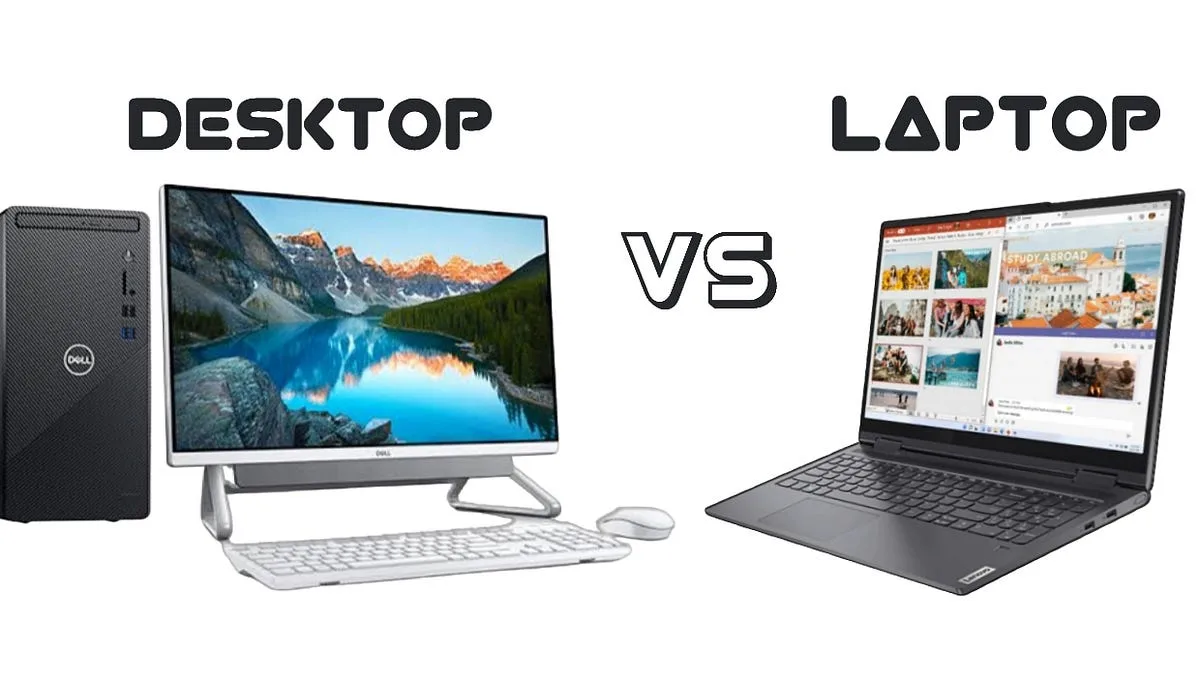
Image source: Bing (Web (fair-use with source credit))
If you're a content creator who needs to be on the move constantly, a high-performance laptop is likely your best bet. If you have a home studio and prioritize maximum power and value, a desktop workstation will serve you better.
Key Computer Components for Smooth Drone Footage Editing
When you’re looking at specs, three components stand out as critical for making your editing life easier. Getting these right will have the biggest impact on how smoothly your drone footage plays and renders.
Processor (CPU) Power
The CPU, or Central Processing Unit, is the brain of your computer. For video editing, it handles a massive amount of calculations, from decoding video files to applying effects and encoding your final export. More cores and higher clock speeds are your friends here.
- Cores: Think of cores as individual processing units. More cores mean your computer can handle multiple tasks simultaneously without slowing down. For drone footage editing, a CPU with at least 6-8 cores is highly recommended. High-end processors can have 12, 16, or even more cores.
- Clock Speed: Measured in Gigahertz (GHz), clock speed dictates how fast each core can perform its tasks. Higher clock speeds mean faster processing.
Manufacturers like Intel (Core i7, i9) and AMD (Ryzen 7, Ryzen 9) offer processors that are well-suited for creative workloads. As of 2026, recent generations of these CPUs provide excellent performance for demanding video editing tasks.
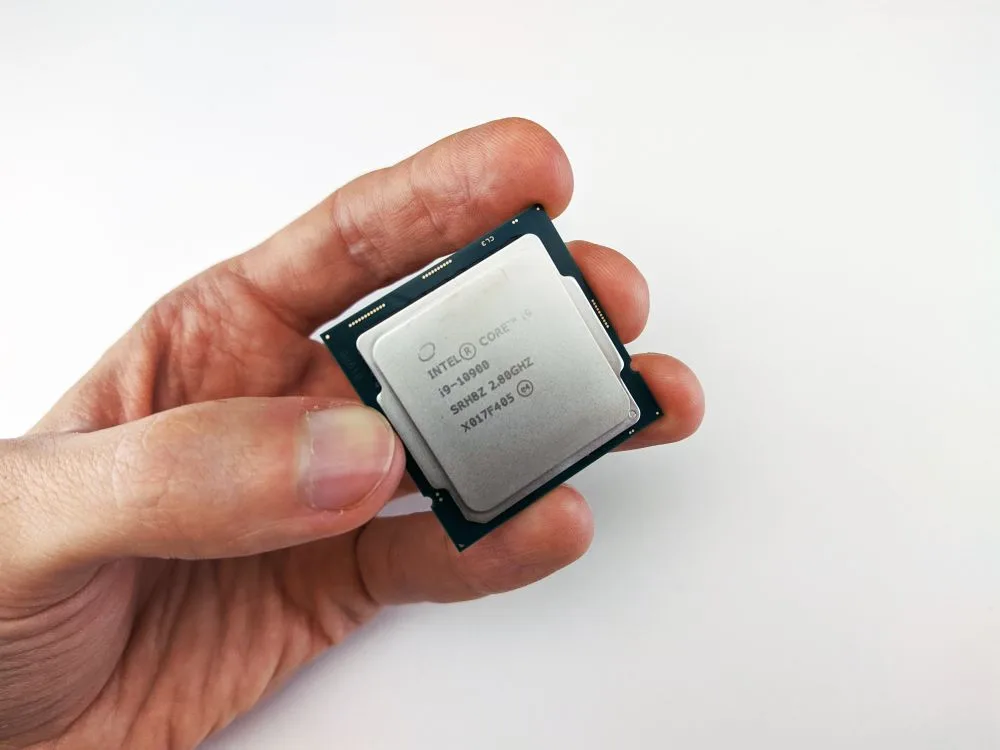
Image source: Bing (Web (fair-use with source credit))
RAM: More is Definitely Better
RAM, or Random Access Memory, is your computer's short-term working memory. When you're editing video, your software, all your video clips, effects, and playback data are loaded into RAM. If you don't have enough, your computer has to constantly swap data between RAM and your much slower storage drive, leading to severe slowdowns.
- 16GB: This is often considered the absolute minimum for editing 4K drone footage, but you'll likely experience lag.
- 32GB: This is the sweet spot for most 4K editing. It allows for much smoother playback and multitasking.
- 64GB or more: If you work with very large files, complex projects, multiple video streams, or higher resolutions (like 6K or 8K), more RAM will significantly improve performance.
Not having enough RAM is one of the most common bottlenecks for video editors, so don't skimp here.
Storage Speed: Why SSDs Rule
The type and speed of your storage drives are crucial for how quickly you can access your footage and how responsive your editing software feels. Traditional Hard Disk Drives (HDDs) are slow; Solid State Drives (SSDs) are vastly faster.
- NVMe SSDs: These are the fastest type of SSD, connecting directly to the motherboard via the PCIe interface. They offer incredible read and write speeds, which drastically cut down on loading times for your operating system, software, and project files.
- SATA SSDs: Still much faster than HDDs, but not as quick as NVMe. Good for general storage.
- HDDs: Best for long-term archival storage of completed projects or footage you don't access frequently, due to their slower speeds.
For editing drone footage, you'll ideally want a fast NVMe SSD for your operating system and current projects, and then additional storage (another SSD or a fast HDD) for your media library and completed archives. This setup ensures your active files are always at hand.
Graphics Card (GPU) for Acceleration
While the CPU does a lot of the heavy lifting, the Graphics Processing Unit (GPU) plays an increasingly important role in modern video editing. Many editing applications, including DaVinci Resolve and Adobe Premiere Pro, can leverage the GPU to accelerate rendering, playback, and the application of certain effects and color grading.
- Dedicated GPU: You absolutely want a dedicated graphics card, not just integrated graphics built into your CPU.
- VRAM: Video RAM (VRAM) on the GPU is critical. For 4K editing, aim for at least 6GB of VRAM, with 8GB or more being ideal for smoother performance and handling more complex effects.
- Manufacturer: NVIDIA's GeForce RTX series cards are very popular and well-supported by most editing software. AMD's Radeon RX series can also be a strong contender.
While you might not need the absolute top-tier gaming GPU, a capable card can make a significant difference in your editing experience.
Editing Performance: What to Expect from Different Setups
The combination of your CPU, RAM, storage, and GPU dictates your overall editing performance. Understanding what to expect helps set realistic expectations and guides your purchasing decisions.
Basic Setup (e.g., Intel Core i5, 16GB RAM, SATA SSD): This might handle 1080p footage reasonably well for simpler edits. For 4K drone footage, expect significant lag during playback, slow renders, and frequent stuttering, especially with multiple clips or effects. Export times will be long.
Mid-Range Setup (e.g., Intel Core i7/Ryzen 7, 32GB RAM, NVMe SSD, RTX 3060): This configuration is where 4K drone footage editing becomes genuinely enjoyable. You’ll see smooth playback for most projects, much faster rendering and export times, and the ability to handle more complex timelines with color grading and multiple effects. This is a solid choice for serious hobbyists and aspiring professionals.
High-End Setup (e.g., Intel Core i9/Ryzen 9, 64GB+ RAM, 2TB+ NVMe SSDs, RTX 4070+): This is for professionals who demand the quickest turnaround times and work with very demanding footage (e.g., 6K, 8K, RAW formats, extensive visual effects). You’ll experience near real-time playback even with demanding effects, lightning-fast exports, and the capacity to handle almost any editing task thrown at it.
The specific editing software you use also plays a role; some are more optimized for certain hardware configurations than others. Always check the recommended system requirements for your preferred editing software.
Mistakes to Avoid When Buying an Editing Computer
Making the wrong choice can lead to frustration and wasted money. One of the most common mistakes is underestimating the RAM needed. Thinking 16GB is enough for 4K is a common misconception; for smooth editing, especially with complex projects, 32GB is the real starting point.
Another pitfall is focusing too much on CPU speed alone. While important, a super-fast processor paired with slow storage (like an old HDD) or insufficient RAM will still bottleneck your performance. Always consider the system as a whole.
Don't forget about cooling, either; a computer that overheats will throttle its performance, negating the power of its components.
- Insufficient RAM: Believing 16GB suffices for 4K drone footage.
- Ignoring Storage Speed: Relying on HDDs for active project files.
- Overlooking Cooling: Purchasing a powerful machine without adequate heat dissipation.
- Prioritizing One Component: Focusing solely on CPU while neglecting RAM or GPU.
- Buying for Today, Not Tomorrow: Selecting specs that quickly become outdated.
Frequently Asked Questions About Editing Computers for Drones
What processor speed do I need for 4K drone footage?
You’ll want a processor with at least 6-8 cores and a clock speed of 3.5 GHz or higher. Intel Core i7/i9 or AMD Ryzen 7/9 processors from recent generations are excellent choices for smooth 4K editing.
How much RAM is really necessary for editing drone video?
For editing 4K drone footage, 16GB of RAM is a bare minimum, but 32GB is highly recommended for smooth performance. If you work with very large files or complex projects, 64GB or more will provide a significant boost.
Is a gaming PC good for editing drone footage?
Yes, gaming PCs often have powerful CPUs and GPUs, making them very capable for video editing. However, ensure they have sufficient RAM (32GB+) and fast SSD storage, as these are critical for editing performance.
Do I need a dedicated graphics card for editing drone footage?
Absolutely. A dedicated graphics card (GPU) with at least 6GB of VRAM, like an NVIDIA GeForce RTX 3060 or better, significantly accelerates rendering, playback, and many editing effects, making your workflow much smoother.
Final Verdict: Choosing Your Ideal Drone Footage Editing Computer
So, what's the final word on the "best" computer? It's a balanced system tailored to your workflow. For serious 4K drone footage editing, aim for a desktop or a high-performance laptop featuring a modern multi-core processor (Intel Core i7/i9 or AMD Ryzen 7/9), at least 32GB of RAM, and a fast NVMe SSD for your operating system and active projects.
A capable dedicated GPU with ample VRAM is also essential.
This combination ensures you'll experience smooth playback, efficient rendering, and a generally frustration-free editing process. While high-end specs offer the ultimate performance, a well-balanced mid-range system can provide excellent value and a greatly improved editing experience over a basic setup. Always consider the specific demands of your drone's output and your chosen editing software.