How Much RAM Is Needed for Drone Video Editing?
So, you're wondering, "How much RAM is needed for drone video editing?" It's a question that pops up as soon as you start handling those high-resolution files from your drone. Too little RAM and your editing software will chug, stutter, and leave you pulling your hair out. Too much, and you might have overspent on hardware you don't quite need.
RAM, or Random Access Memory, is your computer's short-term workspace. When you're editing, your editing software loads footage, effects, and other project data into RAM. Manufacturer specifications, like those from Intel for their processors, often outline recommended RAM configurations for demanding tasks.
Quick Answer
You'll need at least 16 GB RAM for basic drone video editing. 32 GB RAM is the sweet spot for most 4K editing. For complex 6K/8K footage or heavy effects, 64 GB or more is recommended.
The RAM Question: Why It Matters for Drone Footage
RAM is like your editing software's workbench. The bigger the workbench, the more tools and materials you can spread out and work with at once without things getting messy or slow. When you're editing drone footage, especially in high resolutions like 4K, you're dealing with massive amounts of data.
Your editing program needs quick access to this data to render previews, apply effects, and export your final video.
If your computer doesn't have enough RAM, it has to constantly swap data between the fast RAM and the slower storage drive (your SSD or hard drive). This "swapping" is what causes that frustrating lag, skipped frames during playback, and agonizingly long render times. It turns what should be a creative process into a technical hurdle.
Your Footage: The Biggest Factor in RAM Needs
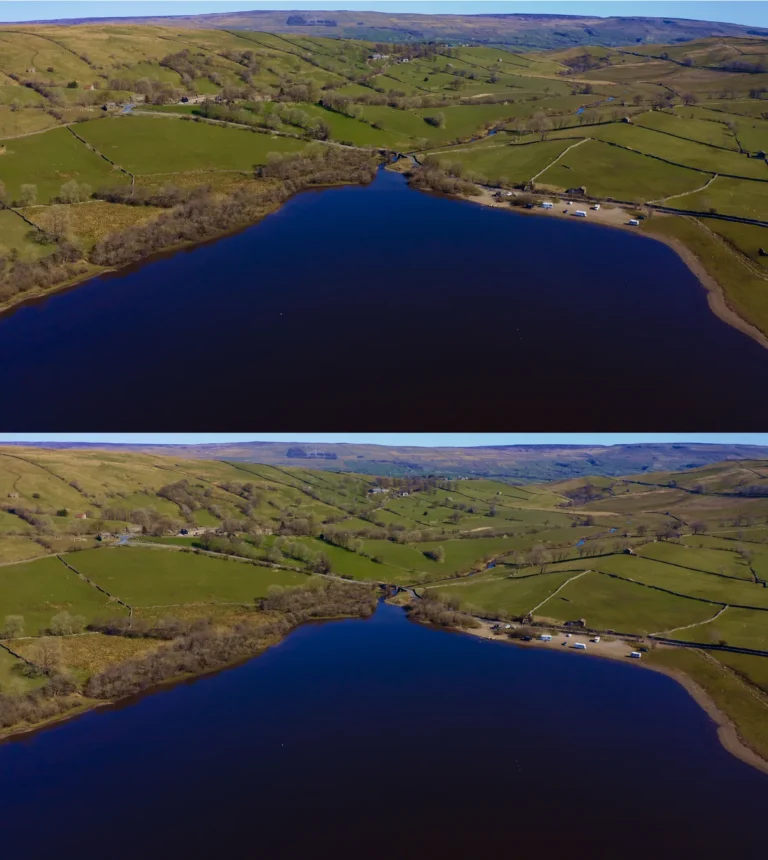
The raw data your drone captures is the primary driver of your RAM requirements. Think of it this way: the higher the quality and detail in your footage, the more information your computer has to manage simultaneously. This directly impacts how much memory your editing software needs to function smoothly.
Resolution: 1080p vs. 4K vs. Higher
This is where RAM demands really start to climb.
- 1080p (Full HD): This is the baseline for many video projects. A file for a minute of 1080p footage at 30 frames per second (fps) is manageable for most systems. Editing 1080p generally requires less RAM, making it more accessible for those on a tighter budget or with older machines.
- 4K (UHD): Stepping up to 4K footage quadruples the number of pixels compared to 1080p. This means each second of video is a significantly larger file. Editing 4K demands more RAM for smooth playback, faster scrubbing through the timeline, and quicker application of effects.
- Higher Resolutions (5K, 6K, 8K): Many newer drones are capable of capturing in resolutions exceeding 4K. This level of detail pushes your system to its limits. Editing 6K or 8K footage requires substantial RAM to handle the sheer volume of data without constant slowdowns. Per the Digital Cinema Initiatives (DCI) standards for cinema, higher resolutions demand more processing and memory resources.
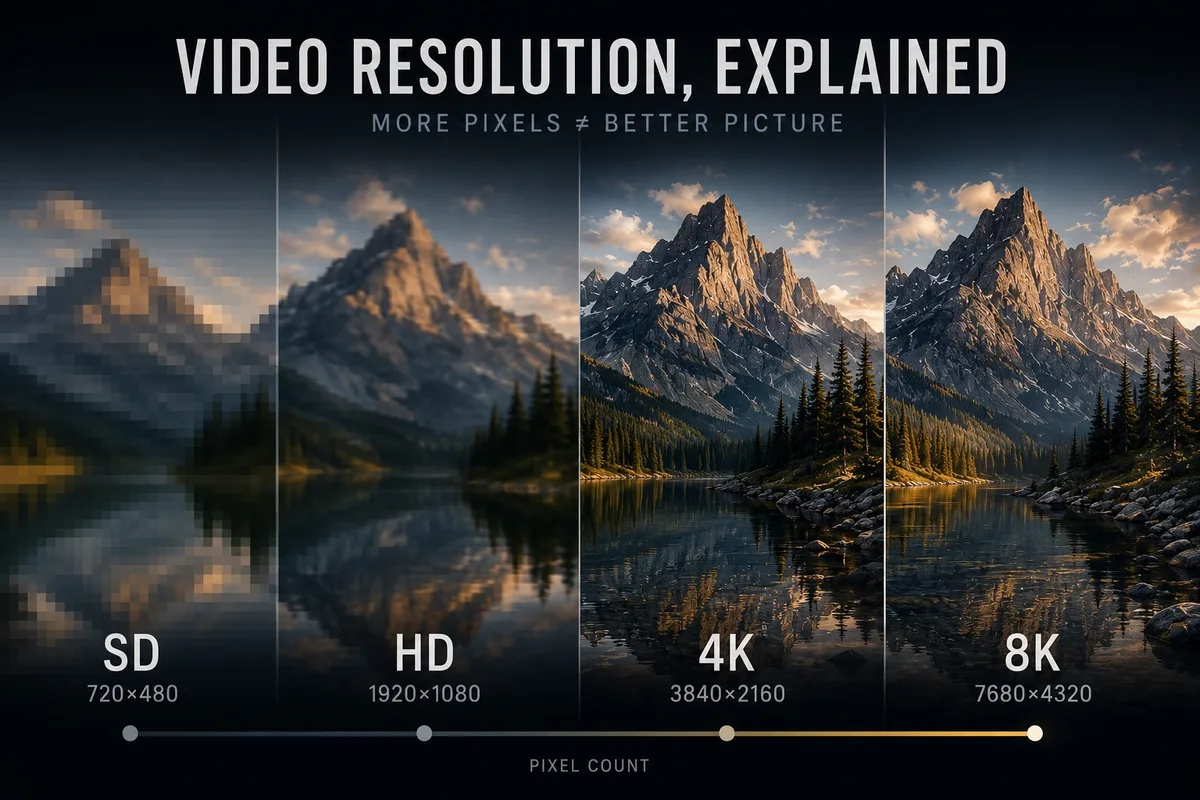
Image source: Bing (Web (fair-use with source credit))
Your Software: More Than Just a Pretty Interface
The editing software you choose is a major player in how much RAM your system will actually use. Some programs are leaner and more efficient, while others are built for high-end performance and can be quite demanding. This is why checking the recommended system requirements for your specific software is always a good idea.
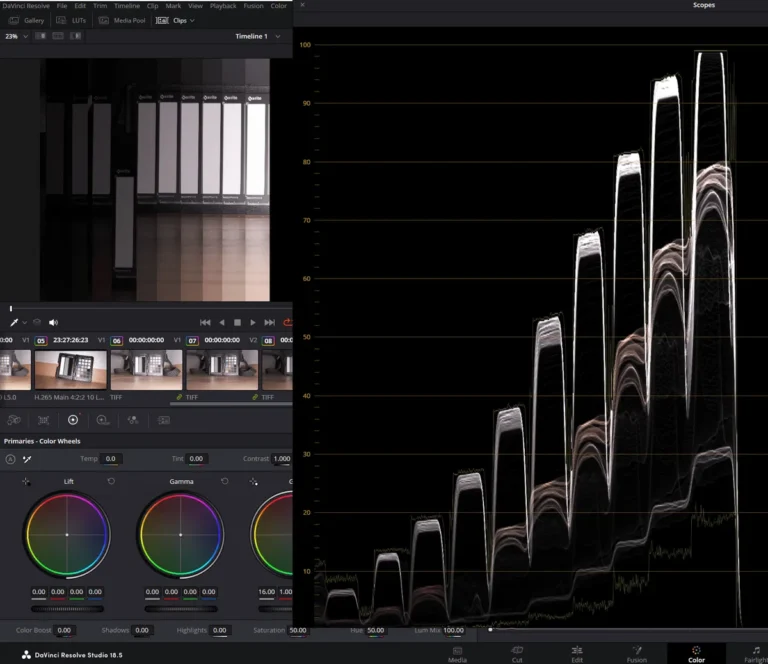
For example, DaVinci Resolve, a powerful and popular free editing suite, is known for being very resource-intensive. It’s incredibly capable, but it will absolutely benefit from and utilize more RAM. Adobe Premiere Pro and Final Cut Pro are also robust options that perform best with ample memory.
If you’re using simpler, more consumer-focused editing apps, they might not push your RAM to its absolute limit. However, even with these, if you're working with larger files or more complex projects, extra RAM still provides a noticeable boost in responsiveness.
What You're Doing: Effects, Layers, and Complexity
Beyond just the resolution of your footage, what you do with that footage makes a huge difference. Are you just making simple cuts and transitions, or are you diving deep into color grading, adding motion graphics, stabilizing shaky shots, or layering multiple video tracks?
- Simple Edits: Basic cuts, adding music, and simple text overlays generally don't hog RAM.
- Color Grading: Applying sophisticated color correction and grading, especially with multiple nodes or LUTs (Look-Up Tables), requires your software to process a lot of color data, which consumes RAM.
- Visual Effects (VFX) & Motion Graphics: When you add visual effects, titles with animations, or any kind of compositing, your RAM is working overtime to render these elements in real-time.
- Multiple Layers & Tracks: Editing with picture-in-picture, multiple camera angles, or extensive audio tracks means your software has more visual and audio information to juggle, all of which needs RAM.
Putting It Together: Your RAM Recommendation Guide
Now, let's translate all this into actionable recommendations. Your specific needs will fall into one of these categories, helping you make an informed decision about how much RAM to aim for.
16 GB: The Starting Point
If you're primarily working with 1080p footage, sticking to basic editing tasks like simple cuts, adding music, and minimal color correction, 16 GB of RAM can get the job done. It’s the minimum for most modern editing software. You'll likely experience some slowdowns if you try to push it with 4K footage or complex effects, but for lighter projects, it's a functional amount.
32 GB: The Sweet Spot for Most
For anyone regularly editing 4K drone footage, 32 GB of RAM is the sweet spot. This amount provides a significant boost in performance over 16 GB, allowing for smoother playback, quicker rendering, and the ability to handle more complex edits with multiple effects. It’s the ideal balance of performance and cost for the majority of drone videographers as of 2026.
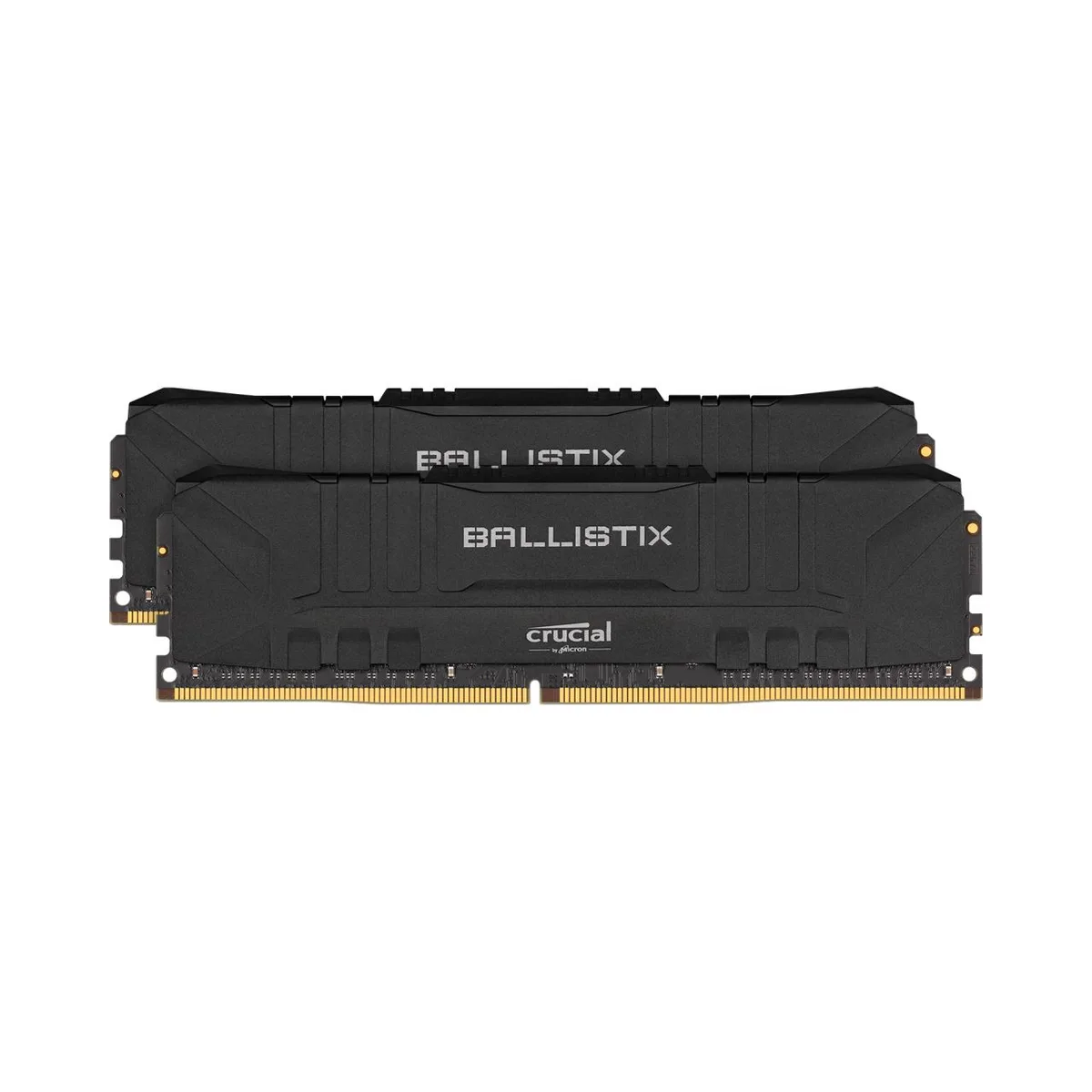
Image source: Bing (Web (fair-use with source credit))
64 GB+: For the Power Users
If you’re consistently working with higher resolutions like 6K or 8K, dealing with extensive visual effects, complex motion graphics, or editing multi-camera projects, then 64 GB of RAM or more is what you’ll want. This level of memory ensures that even the most demanding projects can be handled with relative ease, minimizing bottlenecks and maximizing your productivity. Systems with 64 GB or more are typically found in professional editing suites.
Mistakes to Avoid When Choosing RAM
When you're looking to upgrade your RAM or build a new editing rig, it's easy to fall into a few common traps. Being aware of these pitfalls can save you money and ensure you get the performance you actually need for your drone video editing workflow.
- Buying the Absolute Cheapest: While you don't always need the most expensive, top-of-the-line RAM, choosing the cheapest option available can sometimes mean settling for slower speeds or lower quality components. This can lead to performance issues down the line, even if the capacity (GB) seems sufficient.
- Ignoring Your Motherboard's Limitations: Not all RAM is compatible with every motherboard. Before you buy, always check your computer's motherboard specifications to confirm the type of RAM it supports (e.g., DDR4 or DDR5) and the maximum capacity it can handle. Installing incompatible RAM will simply not work.
- Overspending on Unnecessary Capacity: While more RAM is generally better, there’s a point of diminishing returns. If you’re only editing 1080p footage with basic cuts, buying 128 GB of RAM is almost certainly overkill and a waste of money. Stick to recommendations based on your actual workflow.
- Not Considering Speed: RAM capacity (GB) is crucial, but RAM speed (MHz) also impacts performance. Faster RAM can help your system access data more quickly, which is beneficial for demanding tasks like video editing. However, ensure the speed is supported by your motherboard and CPU.
Expert RAM Tips for Smoother Editing
To really get the most out of your RAM and ensure your drone video editing sessions are as smooth as possible, consider these professional insights.
- Match RAM to Your Workflow, Not Hype: Don't get swayed by the latest high-capacity RAM kits if your editing habits don't demand it. Our research indicates that for most 4K editors, 32 GB offers the best performance-per-dollar.
- Check Software Recommendations: Always consult the official system requirements for your primary editing software (e.g., Adobe Premiere Pro, DaVinci Resolve). Manufacturer documentation, like that from Blackmagic Design for DaVinci Resolve, often provides specific RAM guidelines.
- Consider Future Needs: Drone technology is constantly evolving, with higher resolutions becoming more common. Investing in slightly more RAM than you currently need can future-proof your system and prevent a premature upgrade.
- Dual-Channel Performance: For optimal performance, install RAM in pairs (e.g., two 16 GB sticks instead of one 32 GB stick) to take advantage of dual-channel memory. This allows the CPU to access data from both modules simultaneously, improving bandwidth.
- Keep It Cool: RAM, like other computer components, can perform better and last longer if kept within optimal temperature ranges. Ensure your computer case has good airflow.
Frequently Asked Questions About Editing RAM
How long does it take to install more RAM?
Installing RAM is usually a quick process, often taking less than 15 minutes for most desktop computers. It involves opening the computer case, locating the RAM slots, and carefully inserting the new modules.
Can I mix RAM modules of different speeds or capacities?
While you can sometimes mix RAM modules, it's generally not recommended. Your system will typically run all modules at the speed of the slowest installed module, and mixing capacities can sometimes lead to compatibility issues or reduced performance. It’s best to use identical RAM sticks.
Will faster RAM significantly improve my editing speed?
Yes, faster RAM (higher MHz) can contribute to improved editing speed, especially in memory-intensive applications like video editing. However, the capacity (GB) of RAM often has a more pronounced impact on overall system responsiveness and the ability to handle large files without stuttering.
Is more RAM always better for drone video editing?
Not necessarily. While more RAM allows your system to handle larger files and more complex projects, there’s a point where additional RAM won't yield further performance benefits for your specific workflow. Exceeding your software’s and system’s actual needs can be an inefficient use of resources.
How do I know if my computer needs more RAM?
If you experience frequent slowdowns, your editing software crashes often, playback is choppy, or rendering takes an excessively long time, it’s a strong indication that you might need more RAM. Monitoring your system's RAM usage in Task Manager (Windows) or Activity Monitor (macOS) can also reveal if it’s consistently maxed out.
Mistakes to Avoid When Choosing RAM
When you're looking to upgrade your RAM or build a new editing rig, it's easy to fall into a few common traps. Being aware of these pitfalls can save you money and ensure you get the performance you actually need for your drone video editing workflow.
- Buying the Absolute Cheapest: While you don't always need the most expensive, top-of-the-line RAM, choosing the cheapest option available can sometimes mean settling for slower speeds or lower quality components. This can lead to performance issues down the line, even if the capacity (GB) seems sufficient.
- Ignoring Your Motherboard's Limitations: Not all RAM is compatible with every motherboard. Before you buy, always check your computer's motherboard specifications to confirm the type of RAM it supports (e.g., DDR4 or DDR5) and the maximum capacity it can handle. Installing incompatible RAM will simply not work.
- Overspending on Unnecessary Capacity: While more RAM is generally better, there’s a point of diminishing returns. If you’re only editing 1080p footage with basic cuts, buying 128 GB of RAM is almost certainly overkill and a waste of money. Stick to recommendations based on your actual workflow.
- Not Considering Speed: RAM capacity (GB) is crucial, but RAM speed (MHz) also impacts performance. Faster RAM can help your system access data more quickly, which is beneficial for demanding tasks like video editing. However, ensure the speed is supported by your motherboard and CPU.
Expert RAM Tips for Smoother Editing
To really get the most out of your RAM and ensure your drone video editing sessions are as smooth as possible, consider these professional insights.
- Match RAM to Your Workflow, Not Hype: Don't get swayed by the latest high-capacity RAM kits if your editing habits don't demand it. Our research indicates that for most 4K editors, 32 GB offers the best performance-per-dollar.
- Check Software Recommendations: Always consult the official system requirements for your primary editing software (e.g., Adobe Premiere Pro, DaVinci Resolve). Manufacturer documentation, like that from Blackmagic Design for DaVinci Resolve, often provides specific RAM guidelines.
- Consider Future Needs: Drone technology is constantly evolving, with higher resolutions becoming more common. Investing in slightly more RAM than you currently need can future-proof your system and prevent a premature upgrade.
- Dual-Channel Performance: For optimal performance, install RAM in pairs (e.g., two 16 GB sticks instead of one 32 GB stick) to take advantage of dual-channel memory. This allows the CPU to access data from both modules simultaneously, improving bandwidth.
- Keep It Cool: RAM, like other computer components, can perform better and last longer if kept within optimal temperature ranges. Ensure your computer case has good airflow.
Frequently Asked Questions About Editing RAM
How long does it take to install more RAM?
Installing RAM is usually a quick process, often taking less than 15 minutes for most desktop computers. It involves opening the computer case, locating the RAM slots, and carefully inserting the new modules.
Can I mix RAM modules of different speeds or capacities?
While you can sometimes mix RAM modules, it's generally not recommended. Your system will typically run all modules at the speed of the slowest installed module, and mixing capacities can sometimes lead to compatibility issues or reduced performance. It’s best to use identical RAM sticks.
Will faster RAM significantly improve my editing speed?
Yes, faster RAM (higher MHz) can contribute to improved editing speed, especially in memory-intensive applications like video editing. However, the capacity (GB) of RAM often has a more pronounced impact on overall system responsiveness and the ability to handle large files without stuttering.
Is more RAM always better for drone video editing?
Not necessarily. While more RAM allows your system to handle larger files and more complex projects, there’s a point where additional RAM won't yield further performance benefits for your specific workflow. Exceeding your software’s and system’s actual needs can be an inefficient use of resources.
How do I know if my computer needs more RAM?
If you experience frequent slowdowns, your editing software crashes often, playback is choppy, or rendering takes an excessively long time, it’s a strong indication that you might need more RAM. Monitoring your system's RAM usage in Task Manager (Windows) or Activity Monitor (macOS) can also reveal if it’s consistently maxed out.