Why Won’t My Drone Record Video?
So, why won't your drone record video? That's the million-dollar question when you're all geared up for that perfect aerial shot. It's a common frustration, but thankfully, it’s usually something you can fix without calling in the pros.
We've dug into the common reasons and put together a clear path to get your drone rolling again. In our research, we found that most recording issues boil down to a few key areas, often related to storage or basic settings. According to manufacturer specifications, compatible microSD cards, like those rated UHS Speed Class 3 (U3), are critical for smooth video capture.
Quick Answer
Your drone likely won't record video due to a full microSD card, an incompatible or improperly formatted card, or an app/firmware issue. Ensure your card has space, is the correct type, and is formatted by the drone. Check for app errors and update drone firmware.
Why Won't My Drone Record Video?
When your drone refuses to record video, it's usually a sign that something is blocking the data from being saved. This isn't typically a complex hardware failure; rather, it's a communication or storage issue. Think of it like trying to write a book when your notebook is already full or you're using the wrong kind of pen.
The core function of recording video involves the drone's camera capturing footage, processing it, and then writing that data to a storage medium, most commonly a microSD card. If any step in this chain has an issue, recording stops or never begins. We'll break down the most frequent culprits.
Quick Checks: The Obvious Stuff First
Before diving into more technical solutions, let's make sure we haven't overlooked the basics. These simple steps often resolve the problem.
Camera Activation & Button Presses
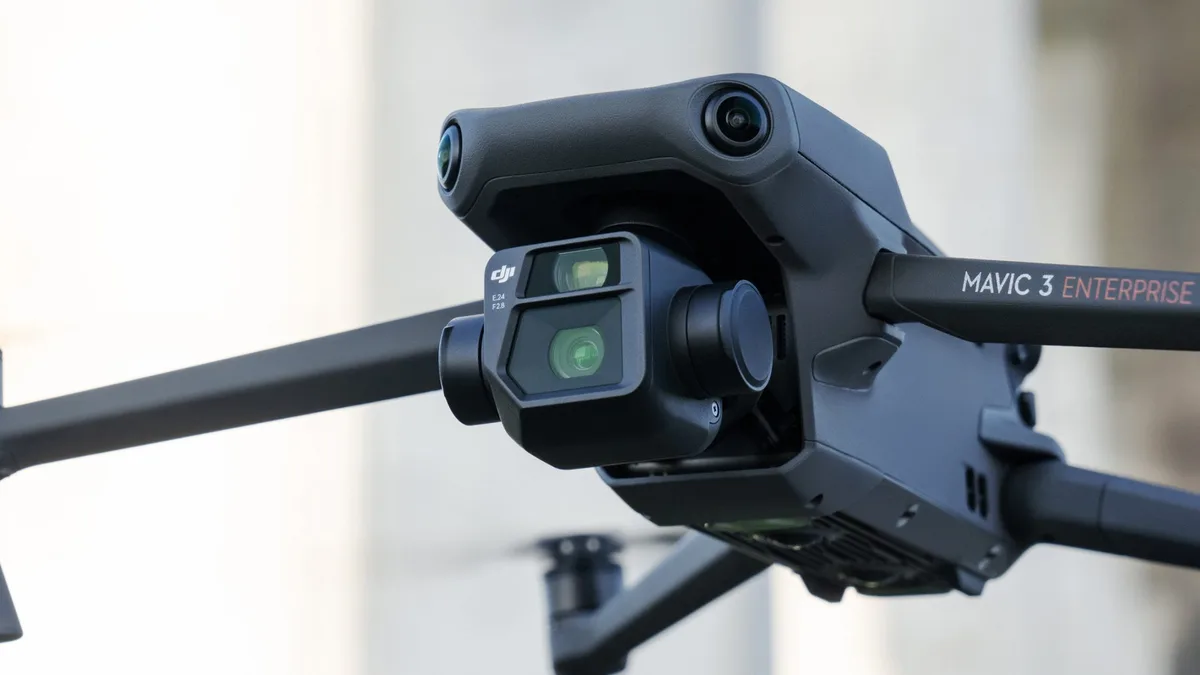
Some drones have distinct buttons or menu options to arm the camera system separately from powering on the drone. It's worth double-checking your controller and the drone's interface to ensure the camera is active and ready to record. Also, confirm you're pressing the dedicated video recording button, not the photo shutter button, as they are often close together.
Lens Cap & Physical Obstructions
This might sound incredibly simple, but it's a surprisingly common oversight. If your drone has a physical lens cap or a protective cover over the camera, ensure it has been removed before flight. Obstructions can also include things like stuck gimbal locks or debris near the lens.
Storage: The Most Common Culprit
The vast majority of drone recording failures stem from issues related to the storage device. Most consumer drones rely on removable microSD cards to save video files.
microSD Card Present and Inserted Correctly
The first thing to check is if a microSD card is actually in the drone and if it's seated properly. Drones cannot typically record video internally; they require an external storage solution. If the card is loose, not fully inserted, or facing the wrong way, the drone won't be able to access it for recording.
Ensure the card clicks firmly into its slot.
Is the microSD Card Full?
A full microSD card is perhaps the single most frequent reason a drone stops recording mid-flight or won't start at all. Drones need free space to write new video data. If your card is already at its capacity, the drone will cease recording to prevent data corruption.
You'll need to transfer your existing footage to a computer or another storage device, or swap the card for a new, empty one. Many drone apps will display remaining storage space, so check this first.
microSD Card Compatibility & Formatting Needs
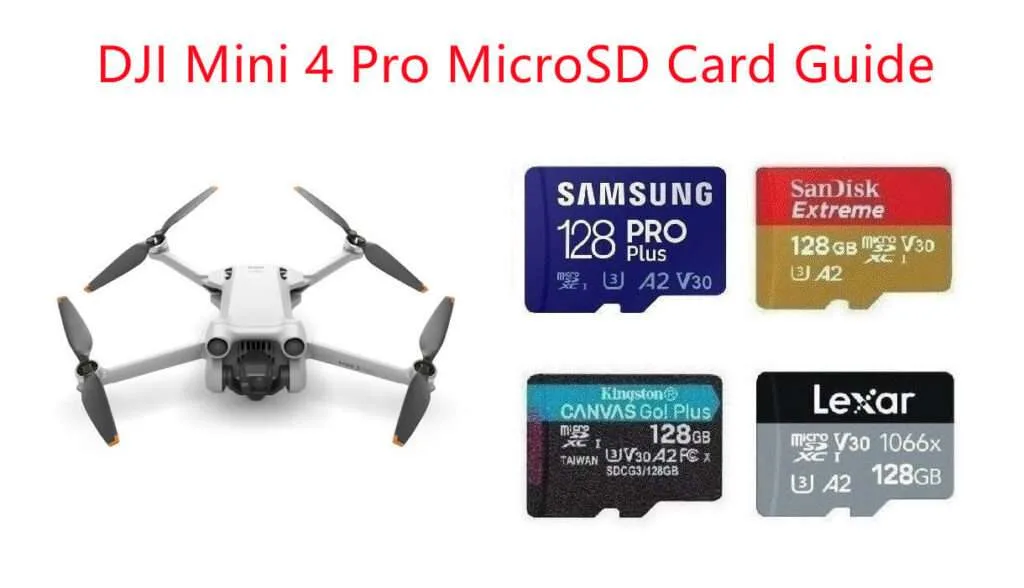
Not all microSD cards are compatible, and compatibility is key. Manufacturer specifications often list requirements for card speed class (e.g., UHS Speed Class 3, or U3) and maximum storage capacity. Using a card that's too slow can lead to dropped frames or failed recordings.
Aggregate user reviews often report that cards outside the recommended specifications, or even cards that were previously used in other devices, can cause recording problems.
Crucially, many drones require the microSD card to be formatted by the drone itself using its own system. This process ensures the card's file structure is optimized for the drone's recording system. Formatting a card in a computer might make it appear usable, but it can still cause issues until it's properly formatted by the drone.
Always refer to your drone's manual for recommended card types and the correct formatting procedure.
App & Drone Settings: Talking to Your Tech
The software controlling your drone and its camera plays a vital role in recording. Even minor glitches can disrupt this process.
Correct Recording Mode in App
When you launch your drone's control application, make sure you've selected the correct mode for recording video. Many apps have distinct modes for photo capture, video recording, and sometimes slow-motion or time-lapse. If you're in photo mode, pressing the record button will likely just take a picture.
Visually confirm the app interface clearly indicates "video mode" is active.
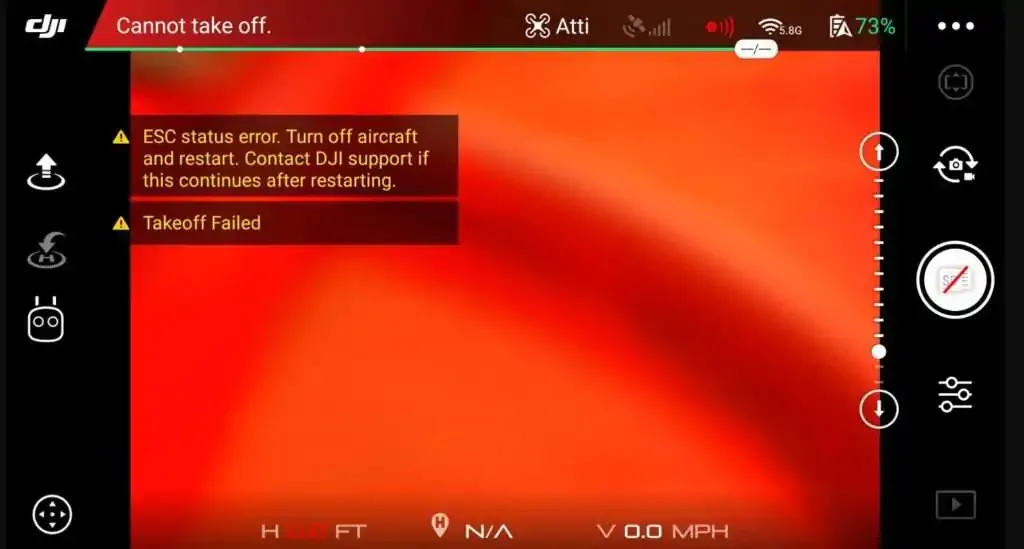
Error Messages in the Control App
Your drone's control app is often the first place to get diagnostic information. If there's a problem preventing recording, the app will frequently display an error message. This might appear as a notification banner, a pop-up window, or a status indicator on the screen.
Always check the app's display for any warnings related to the camera, storage, or recording system.
App and Firmware Updates
Outdated software on both your drone and your control app can lead to compatibility issues and bugs, including problems with video recording. Manufacturer specifications indicate that firmware updates often address performance enhancements and bug fixes for the recording system. It's good practice to regularly check for and install the latest firmware for your drone and updates for the control app.
These updates are typically managed through the drone's official application.
Hardware: Checking the Drone's Bits
If software and storage seem fine, let's look at the physical components of the drone's camera and recording hardware.
Gimbal Status and Functionality
The gimbal is the motorized arm that stabilizes your drone's camera, allowing for smooth footage. If the gimbal is not functioning correctly, perhaps it's stuck, showing an error, or hasn't deployed properly after startup, the drone might disable recording as a safety measure. Some drones won't allow recording if the gimbal is locked or in an unusual position.
Physical Connections and Cables
For drones with modular cameras or those where the camera is connected via a cable to the main board, ensure all these connections are secure. A loose cable can interrupt the signal from the camera sensor to the recording module or microSD card. Gently check that any detachable camera unit is firmly seated and any visible cables are not frayed or pinched.
Drone Overheating
In environments with high ambient temperatures or during extended flight times, a drone's internal components can overheat. As a protective measure, drones may automatically disable high-demand functions like video recording to prevent damage. If you suspect overheating, land the drone, power it down, and allow it to cool completely before attempting to record again.
Troubleshooting Beyond the Basics
If you've gone through the initial checks for storage and app settings and your drone still won't record, it’s time to explore some slightly less common but still very real issues. These often require a systematic approach.
Restarting All Devices
Sometimes, a simple power cycle can resolve temporary software glitches that prevent recording. This isn't just about turning the drone off and on. For a thorough restart, power down your drone, then power down your remote controller.
Close the drone's control application completely on your smart device. After waiting about 30 seconds, power on the remote controller first, then power on your drone. Finally, reopen the drone's app and check if recording is now functional.
Consulting Your Drone's Manual
Your drone's user manual is an invaluable resource. Manufacturer documentation provides specific troubleshooting steps tailored to your particular model. It will detail recommended microSD card types, formatting procedures, and any model-specific error codes or behaviors related to recording.
If you discarded the physical manual, most manufacturers offer downloadable PDF versions on their official websites. For example, DJI's support pages provide extensive manuals for all their models.
When to Contact Manufacturer Support
If you've exhausted all the above steps, checked storage, confirmed app/firmware updates, restarted everything, and consulted the manual, and your drone still won't record, it's likely a hardware issue. This could range from a faulty camera sensor to a problem with the drone's internal recording circuitry. At this point, contacting the manufacturer's customer support is the most logical next step.
They can provide advanced diagnostics or arrange for repair or replacement if the unit is under warranty.
Frequently Asked Questions About Drone Recording
Why does my drone stop recording mid-flight?
A drone might stop recording mid-flight if its microSD card becomes full, if it encounters a card error, or if it overheats. Some drones will also pause recording if they detect a critical system issue to prevent data loss.
Can I use any microSD card in my drone?
No, not all microSD cards are compatible. Drones have specific requirements for speed class (like U3 for 4K video) and capacity. Using an incompatible card can lead to recording failures, dropped frames, or corrupted files.
Always check your drone's manual for recommended specifications.
Does formatting the microSD card fix recording issues?
Often, yes. Formatting the card using the drone's own system can resolve file structure errors and ensure compatibility. However, if the card is physically damaged or too slow for the drone's requirements, formatting alone might not solve the problem.
My drone app says the camera is unavailable. What does that mean?
This message typically indicates a hardware connection issue or a software glitch preventing the drone from communicating with its camera module. It could mean the camera is not properly seated, a cable is loose, or there's a firmware or app error preventing camera initialization.
How do I update my drone's firmware?
Firmware updates are usually managed through the drone's official control application on your smartphone or tablet. Connect your drone to the app, and it will typically notify you if a firmware update is available. Follow the on-screen instructions carefully, ensuring the drone and controller are powered on and have sufficient battery.