What Format Does a Drone Record Video In?
When you launch your drone, what format does a drone record video in? It’s a question that pops up as soon as you start reviewing your aerial footage, and getting it right means your videos will play smoothly and edit beautifully. Many drones default to common formats, but understanding the options can unlock better quality and workflow.
Our research shows that most consumer drones record in MP4 containers using H.264 or H.265 codecs. These provide a good balance of quality and file size, which is crucial for the large amounts of data generated by drone cameras. However, professional workflows might require different settings or post-processing.
Quick Answer
Drones typically record video in MP4 or MOV container formats. The most common codecs used are H.264 (AVC) and H.265 (HEVC). H.264 offers broad compatibility, while H.265 provides better compression for higher resolutions like 4K.
Drone Video Formats Explained: MP4 vs. MOV, H.264 vs. H.265
Picking the right video format from your drone isn't just about hitting record and flying. It directly impacts how your footage looks, how much space it takes up, and how easily you can edit it later. Think of it like choosing the right kind of paper for drawing versus painting, each serves a different purpose.
In our research, we've found that most drone manufacturers offer a few key options, usually a combination of container formats and video compression codecs. Understanding these basic building blocks will help you make informed decisions that align with your project’s needs, whether you’re a hobbyist capturing family trips or a professional shooting for a film. As of 2026, these fundamental technologies continue to evolve, but the core concepts remain.
Image source: Bing (Web (fair-use with source credit))
Container Formats: MP4 and MOV
The container format is essentially a digital envelope that holds your video and audio data, along with metadata like timestamps. It doesn't dictate the quality of the video itself, but rather how it's organized.
- MP4 (.mp4): This is probably the most ubiquitous video format you’ll encounter. It’s widely supported across devices, software, and online platforms. Because of its compatibility, many drones default to MP4.
- MOV (.mov): Developed by Apple, MOV files are also very common, especially in professional video editing. They are often favored for their flexibility and are used by many high-end video editing applications.
Video Codecs: H.264 and H.265 (HEVC)
Codecs (coder-decoder) are the real magic behind video compression. They take the raw video data from your drone’s camera sensor and compress it to reduce file size while trying to preserve as much visual information as possible.
- H.264 (AVC, Advanced Video Coding): This has been the industry standard for years. It's highly compatible and offers a good balance between quality and file size for HD and 4K footage. Most editing software and playback devices handle H.264 effortlessly.
- H.265 (HEVC, High Efficiency Video Coding): This is a newer, more advanced codec. Manufacturer specifications indicate H.265 can offer roughly 50% better compression than H.264 at the same quality level. This means smaller file sizes, which is a huge advantage when shooting in high resolutions like 4K or 8K, saving precious space on your SD card.
Choosing between these formats comes down to your priorities: ease of editing and compatibility (H.264/MP4) versus storage efficiency and higher resolution potential (H.265/MP4 or MOV).
Understanding Codecs: H.264 and H.265 (HEVC) Deep Dive
Codecs are the unsung heroes of digital video, responsible for making massive amounts of raw footage manageable. When your drone's camera captures an image, it’s processed and compressed using a specific codec. Think of a codec like a language interpreter; it translates the complex video data into a more streamlined format for storage and playback.
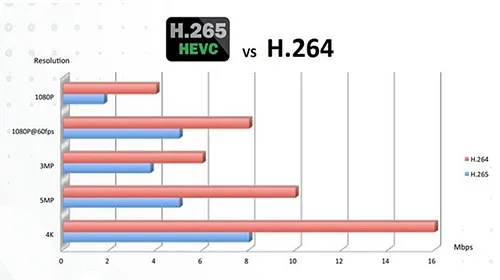
Image source: Bing (Web (fair-use with source credit))
H.264: The Tried-and-True Standard
H.264, also known as AVC, has been the dominant video compression standard for over a decade. Its widespread adoption means that virtually any device or editing program you use will support H.264 files without issues. This broad compatibility makes it a very safe choice, especially if you’re not sure where your footage will end up.
- Pros: Excellent compatibility, well-supported by editing software, good balance for HD and 4K.
- Cons: Less efficient compression compared to newer codecs, leading to larger file sizes for the same quality at higher resolutions.
Aggregated reviews report that footage compressed with H.264 is generally easy to work with from a technical standpoint, requiring less processing power from your computer during editing. This can be a significant factor if you’re working with older or less powerful editing machines.
H.265 (HEVC): The Efficiency Champion
H.265, or HEVC (High Efficiency Video Coding), is the successor to H.264 and is designed to be significantly more efficient. Per ITU-T standards, HEVC can achieve the same visual quality as H.264 but with about half the bitrate, translating to much smaller file sizes. This is a game-changer for drones, allowing them to record longer videos at higher resolutions, such as 4K or even 8K, without filling up storage cards too quickly.
- Pros: Superior compression (smaller files for same quality), ideal for 4K/8K, saves storage space.
- Cons: Requires more processing power to encode and decode, potentially leading to slower editing performance on less powerful computers. Compatibility, while growing rapidly, is still not as universal as H.264.
When shooting in 4K with a modern drone, selecting H.265 is often recommended if your editing workflow can handle it. It dramatically reduces the burden on your storage and makes transferring footage quicker. However, if you experience choppiness during editing or playback, or if your software struggles, reverting to H.264 might be necessary.
Container Formats: MP4 and MOV, What's the Real Difference?
While codecs compress the video data itself, container formats like MP4 and MOV are like the boxes that hold that compressed data, along with audio tracks and metadata. They dictate how all the pieces of your video file are organized and packaged. For drone videography, understanding these differences helps ensure your footage integrates smoothly into your editing projects.
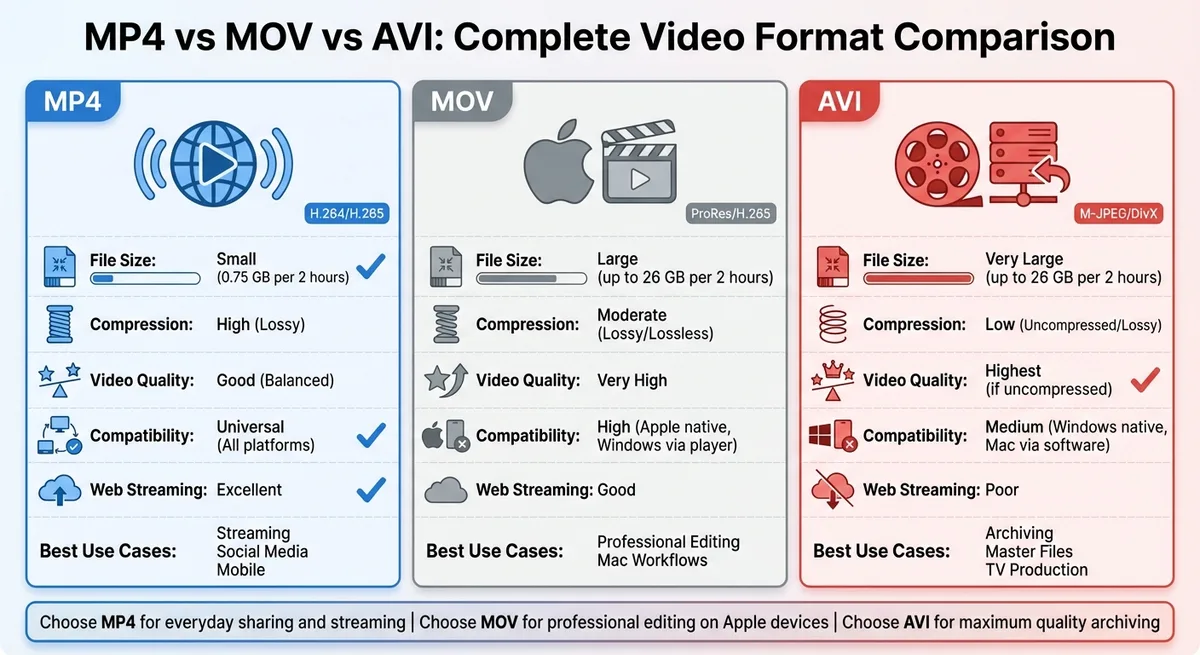
Image source: Bing (Web (fair-use with source credit))
MP4: The Universal Player
MP4 (MPEG-4 Part 14) is the most common container format you'll find on drones. Its design prioritizes broad compatibility, making it a safe bet for almost any application. Whether you're uploading to YouTube, sharing with friends, or importing into most editing software, MP4 files are generally accepted without a hitch.
- Key Feature: Excellent cross-platform compatibility.
- Commonly Used With: H.264 and H.265 codecs.
- Why Drones Use It: It’s a reliable, all-around choice that works for most users and sharing scenarios.
You'll find that most drone manufacturers, from DJI to Autel, offer MP4 as a primary or default recording option. This ensures that even if you're new to video editing, your footage will be accessible.
MOV: The Professional’s Choice (Often)
MOV is a proprietary format developed by Apple, often associated with their QuickTime framework. While historically tied to macOS, MOV files are now widely supported on Windows as well. Professional video editors often prefer MOV because it can handle higher bitrates and more complex video structures, making it ideal for intricate post-production work and color grading.
- Key Feature: Often associated with higher-quality professional workflows and more advanced features.
- Commonly Used With: Can contain various codecs, including H.264, H.265, and professional codecs like ProRes.
- Why Drones Use It: Some higher-end drones or specific shooting modes might offer MOV to cater to professional users who demand more flexibility in post-production.
For example, if a drone offers a "Log" or "RAW" video option, it might be packaged within a MOV container. This gives editors maximum latitude to manipulate the image's colors and exposure later. However, these files are typically much larger and require powerful editing systems.
The choice between MP4 and MOV often boils down to your editing software and workflow. If you primarily use consumer-level editing tools or plan to share footage online quickly, MP4 is usually sufficient. If you're working with professional editing suites like Final Cut Pro or Adobe Premiere Pro and need maximum control over color and detail, MOV might be a better fit, especially when paired with efficient codecs.
Key Video Settings: Resolution, Frame Rate, and Bitrate Impact
Beyond just the container and codec, several other settings on your drone's camera significantly influence the video file's quality, size, and how it performs. These are the technical levers you can pull to fine-tune your footage. Understanding how they interact is key to getting the best results for your specific needs.
Resolution: How Sharp Is Your Image?
Resolution determines the number of pixels that make up each frame of your video. More pixels mean a sharper, more detailed image.
- 1080p (Full HD): 1920 pixels wide by 1080 pixels tall. This is standard HD and is great for web use or when storage is a major concern.
- 4K (UHD): 3840 pixels wide by 2160 pixels tall. This offers four times the pixels of 1080p, resulting in significantly more detail and clarity. It’s becoming the standard for professional video and good for future-proofing.
- 8K: 7680 pixels wide by 4320 pixels tall. This is exceptionally high resolution, offering incredible detail but also demanding significant storage and processing power.
Manufacturer specifications confirm that shooting in 4K or 8K requires larger files and more robust storage (e.g., fast SD cards) and editing hardware.
Frame Rate: Smoothness of Motion
Frame rate refers to how many individual images (frames) are displayed per second, measured in frames per second (fps). A higher frame rate results in smoother motion, especially for fast-moving subjects or when you plan to slow down footage for cinematic effect.
- 24 fps: The cinematic standard, offering a natural, film-like look.
- 30 fps: Common for broadcast television and general-purpose video.
- 60 fps (or higher): Ideal for capturing fast action or for creating smooth slow-motion effects when edited down to 24 or 30 fps.
If you’re capturing sports, wildlife, or anything with rapid movement, opting for 60 fps can make a big difference. For standard scenic shots, 24 or 30 fps is usually sufficient.
Bitrate: The Data Flow of Quality
Bitrate is the amount of data that is processed per unit of time, usually measured in megabits per second (Mbps). A higher bitrate means more data is being used to represent each second of video, leading to higher quality with fewer compression artifacts.
- Lower Bitrate: Smaller file sizes, but potentially more visual noise or blockiness, especially in detailed or fast-moving scenes.
- Higher Bitrate: Larger file sizes, but with greater detail, cleaner colors, and smoother transitions.
When selecting a codec and resolution, the bitrate is often automatically set by the drone's software, or you may have manual control. For professional work, aiming for the highest possible bitrate your drone and storage can handle is usually best, provided your editing system can cope. For example, a 4K video at 30fps might have a bitrate ranging from 50 Mbps (H.264) to over 100 Mbps (H.265 or higher quality profiles).
Which Format Is Best? Comparing Options for Different Needs
Deciding on the right video format for your drone footage isn't a one-size-fits-all situation. What works perfectly for one person might be overkill or insufficient for another. It really comes down to what you plan to do with the video after you’ve captured it and what kind of equipment you have to work with.
Let's break down who benefits most from each common setup.
For Smooth Editing: High Bitrate & Less Compression
If your top priority is a seamless editing experience without your computer struggling, you'll want to lean towards formats that prioritize less compression. This generally means using a higher bitrate, and potentially sticking with H.264 or a high-quality MOV container.
- Who benefits: Professional editors, those working with complex visual effects, users with high-performance editing workstations (powerful CPUs, lots of RAM, fast GPUs).
- Why: Less compressed footage requires less processing power to decode and manipulate in editing software. This leads to smoother playback in your timeline, faster rendering times, and fewer dropped frames. High bitrates also mean more detail is preserved, offering greater flexibility for color correction and grading.
- Settings to look for: Higher resolutions (4K), higher frame rates (60fps if needed), and the highest bitrate option available in H.264 or a professional codec within an MOV container.
Even with powerful hardware, very high-resolution, high-bitrate footage can still be demanding. For instance, 4K 60fps footage at a bitrate of 100 Mbps or higher will require a robust system.
For Storage and Sharing: Efficient Codecs like H.265
If you're worried about filling up your drone's SD card too quickly or need to send files efficiently, then H.265 (HEVC) is your best friend. This codec offers significantly better compression than H.264, meaning you get similar visual quality in a much smaller file size.
- Who benefits: Hobbyists, content creators who upload frequently to social media, users with limited storage space on their drone or computer, those shooting a lot of 4K or higher resolution video.
- Why: Smaller file sizes mean you can record more footage on the same SD card, transfer files faster, and upload to platforms like YouTube or Instagram with less waiting time. This is especially valuable if you’re shooting extensive aerial sequences.
- Settings to look for: H.265 codec, usually within an MP4 container, often at resolutions like 4K or 8K.
Keep in mind that while H.265 is more efficient for storage, it can be more taxing on your computer during editing. If you notice stuttering playback or slow rendering, you might need to convert your H.265 footage to H.264 or a ProRes format before editing, which adds an extra step.
For Maximum Compatibility: The Ubiquitous MP4
When you just want your video to play anywhere, on any device, without any fuss, the MP4 container format is usually the safest bet. Its widespread support means you’re unlikely to run into playback issues, whether you’re sharing with family or submitting a project.
- Who benefits: Anyone who needs maximum playback compatibility across various devices, operating systems, and editing software without wanting to worry about format conversions. This includes casual users, educators, and those collaborating with many different people.
- Why: MP4 files are universally recognized. Most operating systems (Windows, macOS, Linux), video players (VLC, QuickTime), and web browsers can open and play MP4s without needing special codecs or software.
- Settings to look for: MP4 container, often paired with the H.264 codec for maximum compatibility, though MP4s with H.265 are also becoming very common and widely supported.
If your drone offers a simple "auto" setting or a "standard" recording mode, it’s almost certainly defaulting to an MP4 container with H.264 or H.265. This makes it the go-to choice for ease of use and broad accessibility.
Common Mistakes When Choosing Drone Video Formats
Even with the best intentions, it's easy to stumble when picking video formats. One common pitfall is overlooking your editing software's capabilities. If your software can't smoothly handle high-bitrate 4K footage recorded in H.265, you'll end up with a frustrating editing experience.
Another mistake is prioritizing file size over essential quality settings, especially for professional projects. While H.265 is efficient, shooting in too low a bitrate can result in noticeable artifacts, like blockiness or banding, that are hard to fix in post-production. For instance, shooting a dramatic sunset with insufficient bitrate will lead to color banding in the sky that ruins the shot.
Will My Editing Software Handle It?
If you're using older or more basic editing software, it might struggle with newer, more compressed codecs like H.265, especially at 4K or higher resolutions. This can lead to choppy playback and very long export times. Always check your software's system requirements and codec support before you start shooting.
Adobe Premiere Pro, Final Cut Pro, and DaVinci Resolve generally have excellent support for modern codecs, but a simpler program might not.
Overlooking File Size vs. Quality Trade-offs
It’s a balancing act. While smaller files are convenient, they come at the cost of detail and color information. For critical projects where future editing flexibility is paramount, sacrificing some storage space for a higher bitrate (even in H.264) or a professional codec within MOV is often the wiser choice.
Conversely, for quick social media posts, highly compressed formats might be perfectly acceptable.
Expert Tips for Recording and Storing Drone Video
Getting the most out of your drone footage starts with smart recording habits and a solid storage strategy. Our research into professional aerial videography workflows highlights a few key practices that consistently lead to better results and fewer headaches down the line.
First, always ensure your drone's firmware and its SD card are up-to-date. Outdated firmware can sometimes lead to compatibility issues or suboptimal recording performance. For SD cards, using a reputable brand with a high speed class (like UHS-I U3 or V30) is crucial, especially for 4K and H.265 recording.
A slow card can cause dropped frames or recording interruptions.
Pre-Flight Checks for Optimal Recording
Before every flight, take a moment to set your drone's camera settings.
- Format Selection: Choose your container (MP4/MOV) and codec (H.264/H.265) based on your intended use and editing capabilities. When in doubt, H.264 in MP4 is the most versatile.
- Resolution & Frame Rate: Select based on your project needs. 4K at 30fps is a good all-around choice. If you need slow-motion, plan for 4K at 60fps or higher.
- Bitrate: If you have manual control, opt for the highest stable bitrate your card and drone support for maximum quality.
Smart Storage and Transfer Practices
Once you've landed, don't delay transferring your footage.
- Use Fast SD Cards: Invest in high-speed, high-capacity SD cards (64GB or larger, V30 or faster).
- Transfer Promptly: Offload footage to your computer or a portable drive as soon as possible after your flight.
- Backup: Always create at least one backup of your raw footage before you start editing. Storing footage on multiple drives reduces the risk of data loss.
- Organize Files: Develop a clear file naming and folder structure system to easily locate specific clips later.
Frequently Asked Questions About Drone Video Formats
### What is the default video format for most drones?
Most consumer drones default to the MP4 container format, often using the H.264 codec. This offers broad compatibility for playback and sharing across various devices and platforms.
### Is H.265 better than H.264 for drone footage?
H.265 (HEVC) offers significantly better compression than H.264, meaning smaller file sizes for the same video quality. This is ideal for high-resolution footage like 4K and saves storage space. However, H.265 requires more processing power to edit.
### Should I use MP4 or MOV for drone video?
MP4 is generally more compatible across devices and online platforms. MOV is often preferred in professional video editing workflows for its flexibility with higher quality codecs and metadata. For most users, MP4 is perfectly adequate.
### How does bitrate affect drone video quality?
Bitrate dictates how much data is used per second of video. A higher bitrate means more detail, cleaner colors, and fewer compression artifacts, resulting in better visual quality but larger file sizes. A lower bitrate leads to smaller files but can introduce blockiness or loss of detail.
### Can I change my drone's video format settings while flying?
No, format settings like resolution, frame rate, and codec must be set before you take off. You can change these in the drone's camera app settings while it's powered on and connected to your controller, but not during an active flight.